Exporting to PDF
To export to PDF, select the Project menu > Share/Export > Download a file > PDF option or use the dedicated keyboard shortcut CTRL/⌘+P.
Each board will be displayed on a separate page of a PDF document. The boards will be in the same order as in the project, so arrange them in the order you'd like before exporting.
You can choose to export all boards or a subset, including any alternates you have created.
The PDF export options are shown below.
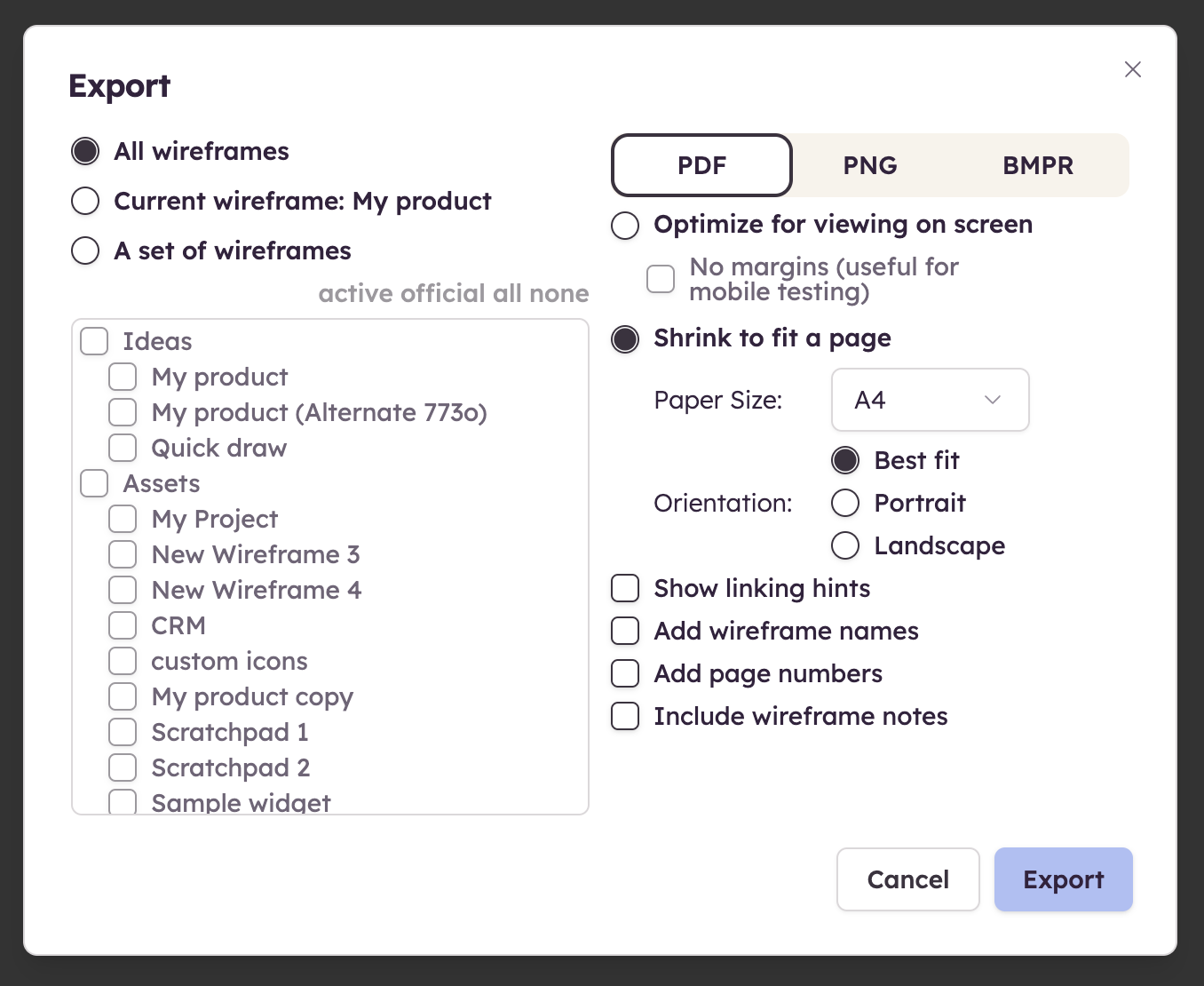
Exporting your project to PDF can be useful for printing, sending by email, presenting to clients, or posting online. The PDF will be created in high resolution and with selectable text (good for your team to copy/paste from).
If your boards contain links, these will work in your exported PDF as well, which will allow you to create click-through prototypes of your designs. (To learn more about linking, check out Linking boards together.)
Note: Links may not work in the default Windows 8 or 10 PDF viewer. If this happens, you can download Adobe Acrobat or one of the many other free PDF viewers.