Reviewing and commenting
Comments allow you to collaborate on your designs by sharing feedback asynchronously or, if you prefer, making notes for yourself as you work.
Adding a comment
Both editors and reviewers can add and manage comments. If you want to focus on feedback rather than editing, you can switch to Review and Comment mode from the Edit menu.
There are two ways to add a comment:
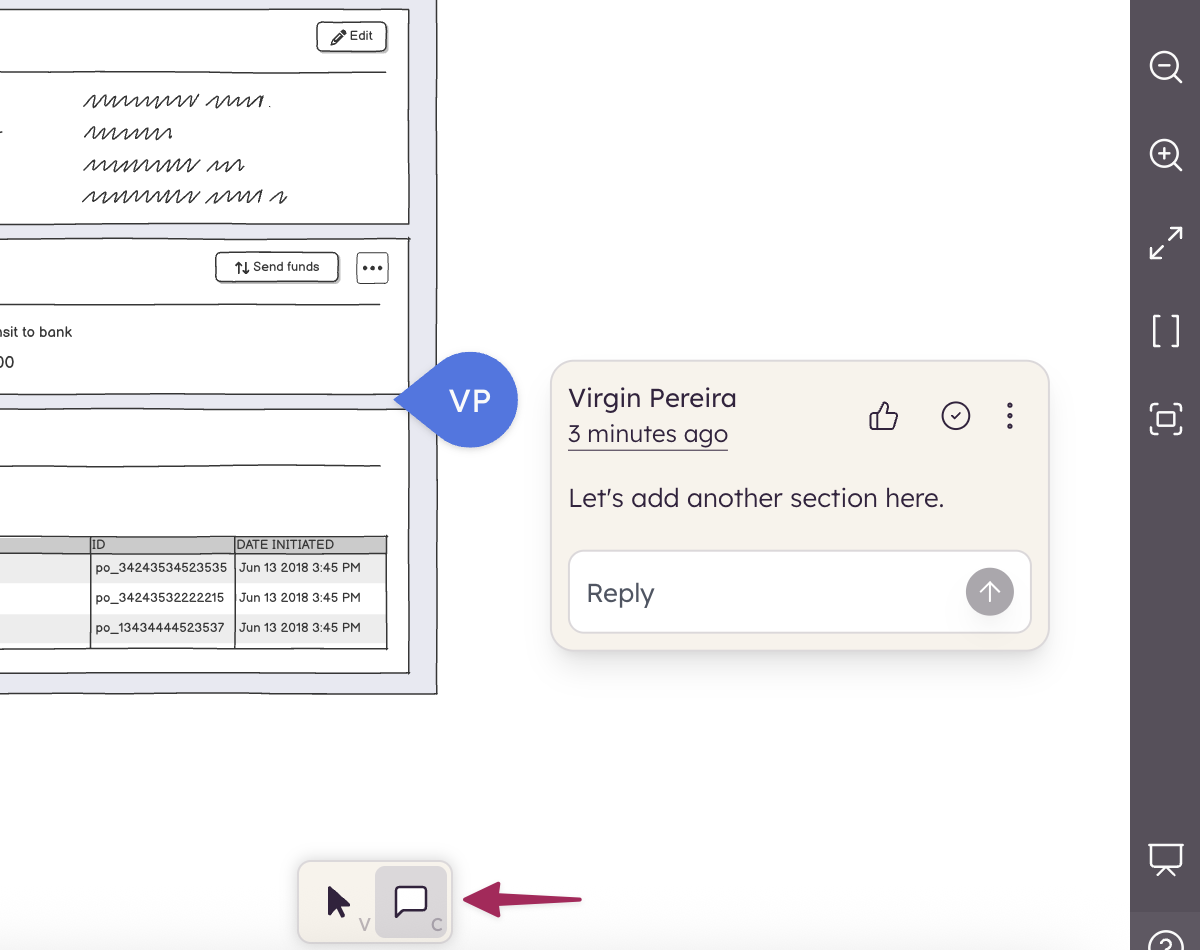
- Press C to place a comment callout at your cursor position
- Open the comments panel from the left bar and click the + comment icon.
The comments panel
The comments panel in the left toolbar shows all comments in the project, grouped by board and sorted from oldest to newest. The current board is expanded by default; other boards can be expanded or collapsed. The panel is available to both editors and reviewers. You can open and close it by pressing CMD+..
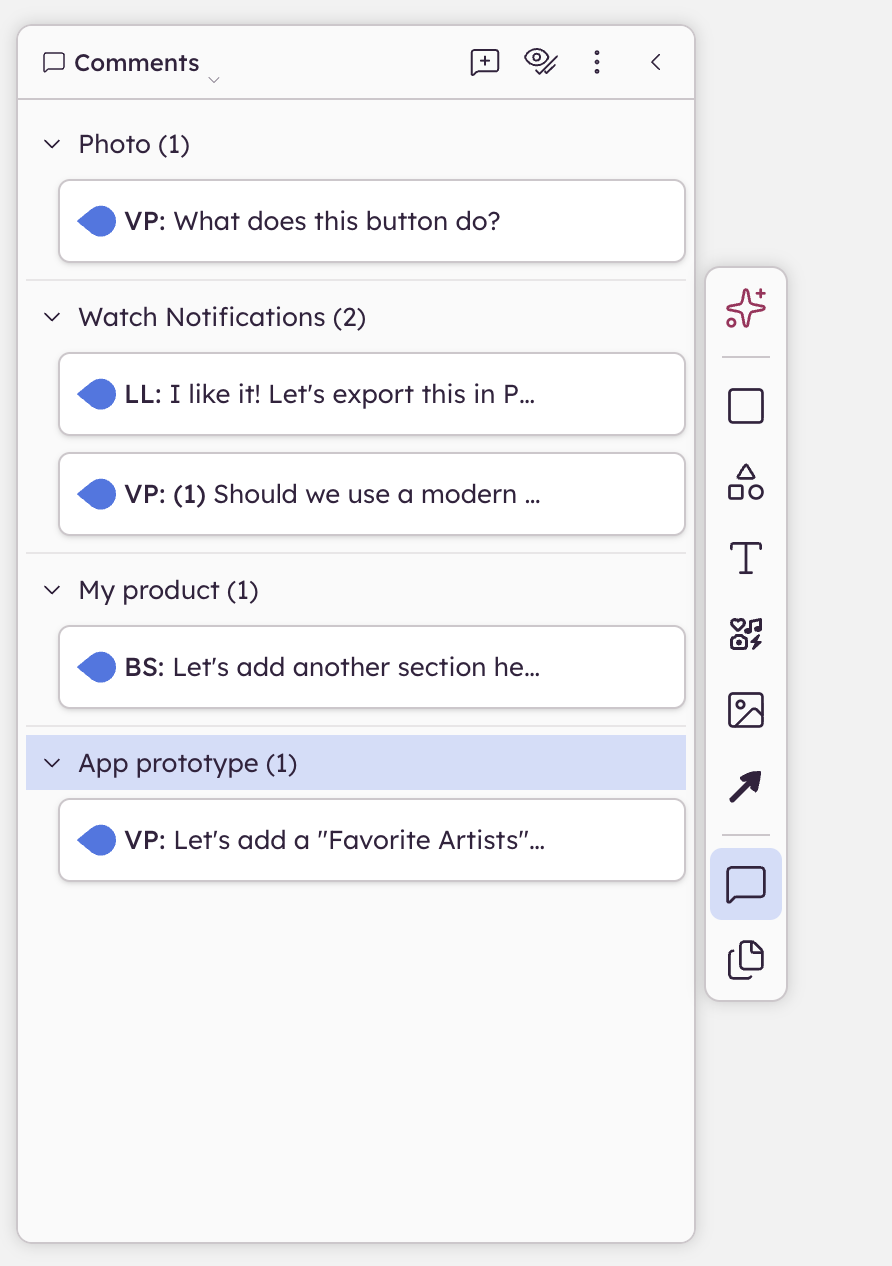
Clicking a comment in the panel scrolls it into view on the board. You can hover over someone's initials to see their full name, email, and the comment timestamp.
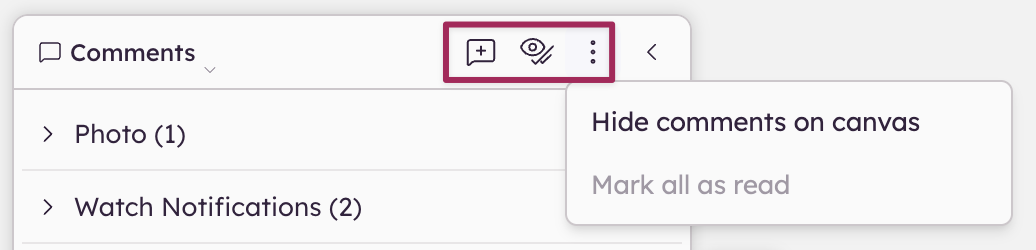
Panel header actions:
- Add a comment — places a new comment in the center of the board.
- Show/hide resolved — toggle to show or hide resolved comments. When shown, resolved comments appear semi-opaque in both the panel and on the board.
- Overflow menu (⋯) — includes "Hide comments on boards" and "Mark all as read."
Note: When callouts are hidden from the project boards, a "Show comments" button appears in the panel header as a reminder, and the left toolbar icon changes to a crossed-out comment icon.
Notification bell
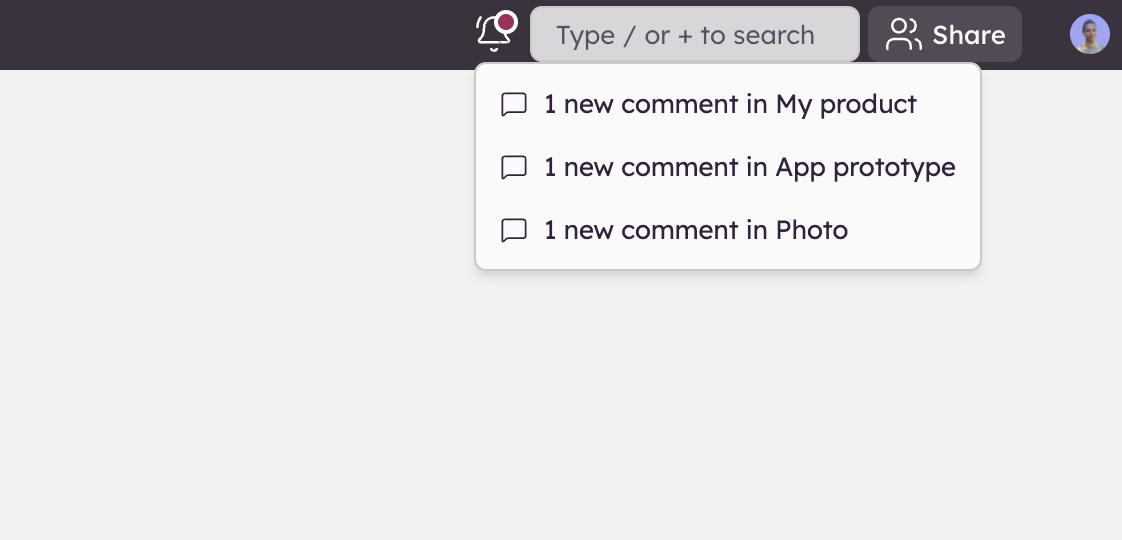
A bell icon in the top bar shows a count of unread comments across the project. Clicking it opens a dropdown listing which boards have new comments. Clicking a board in the dropdown opens the comments panel and scrolls to the first unread comment on that board.
Comment mentions
Note: @-mentions are only available in Balsamiq Cloud. You can also use them in your board notes.
Comments allow you to mention anyone that has access to the project you're working on. They will trigger a notification or not, depending on the mentioned user's notification preferences.
To mention someone, start typing "@" and select someone from the list.
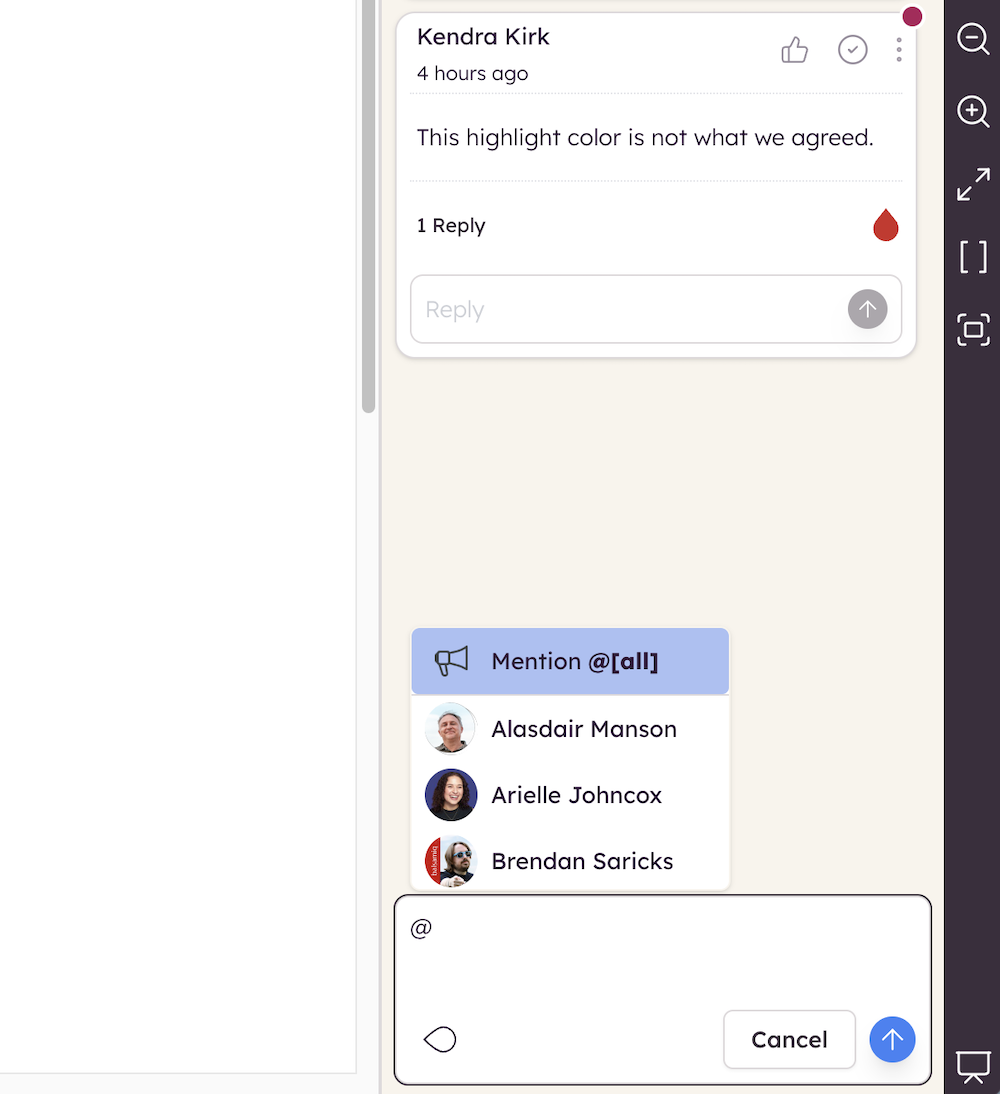
Comments that mention you are highlighted with a blue border and an @ indicator in the comments panel.
Comment actions
Once a comment is added, each reviewer can reply to it and/or like it. You can also resolve, edit, and delete your own comments.
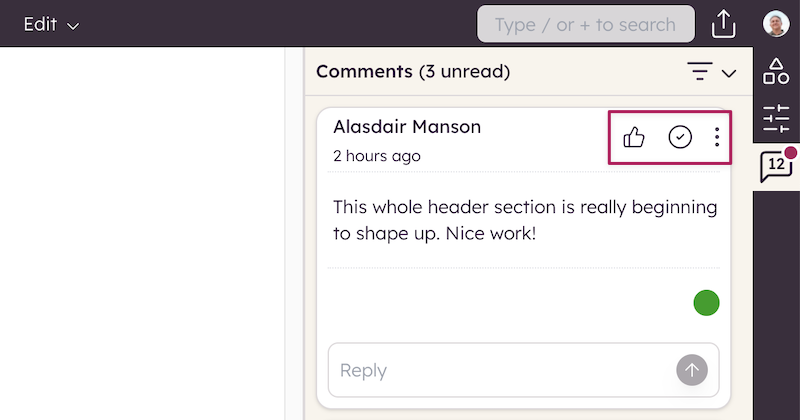
You can manually mark a comment as unread from the 3-dot menu.
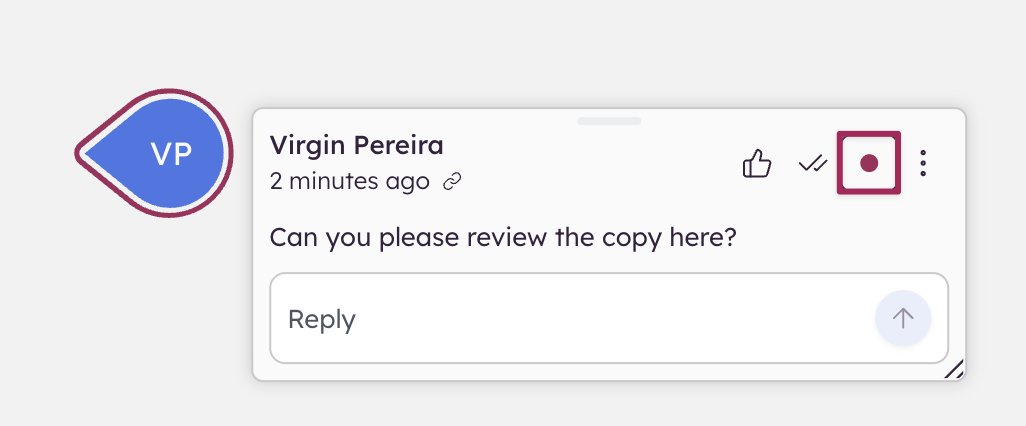
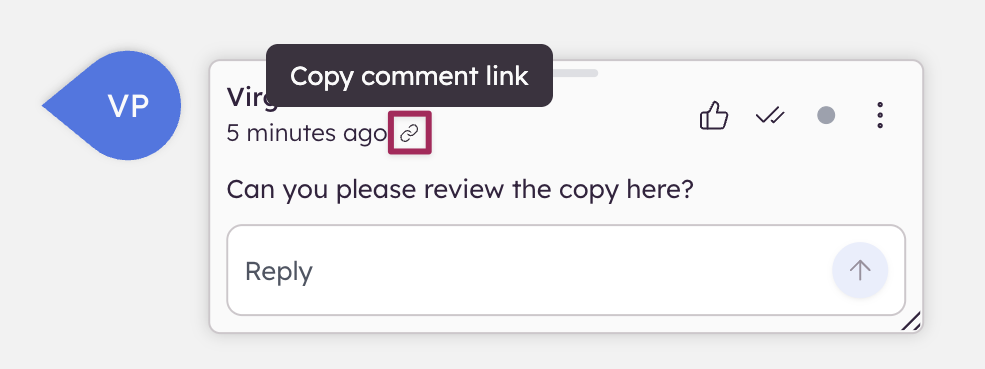
A link icon on each comment lets you copy a direct URL to that specific comment. When someone opens the link, the correct board loads with the comment in focus and highlighted.