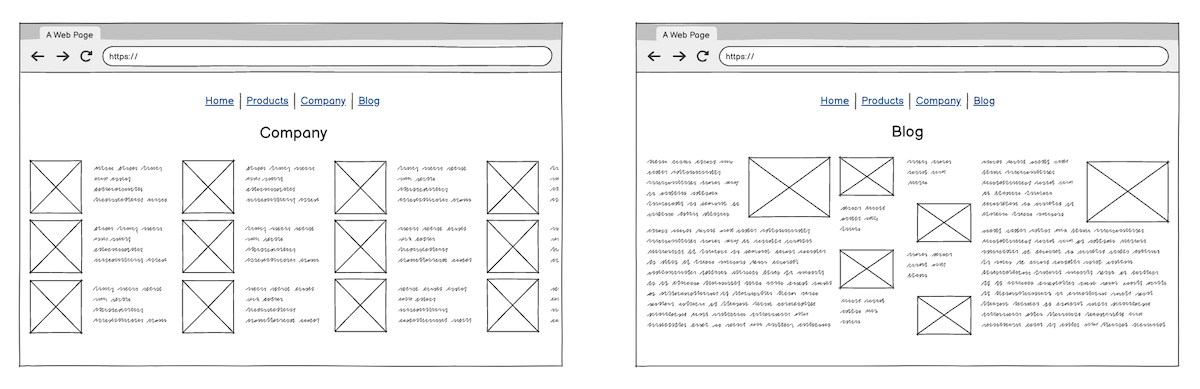
Balsamiq allows you to create individual wireframes for each screen or page you’d like to demonstrate but, sometimes, you might need to create a single wireframe for multiple screens or pages. Like this for example:
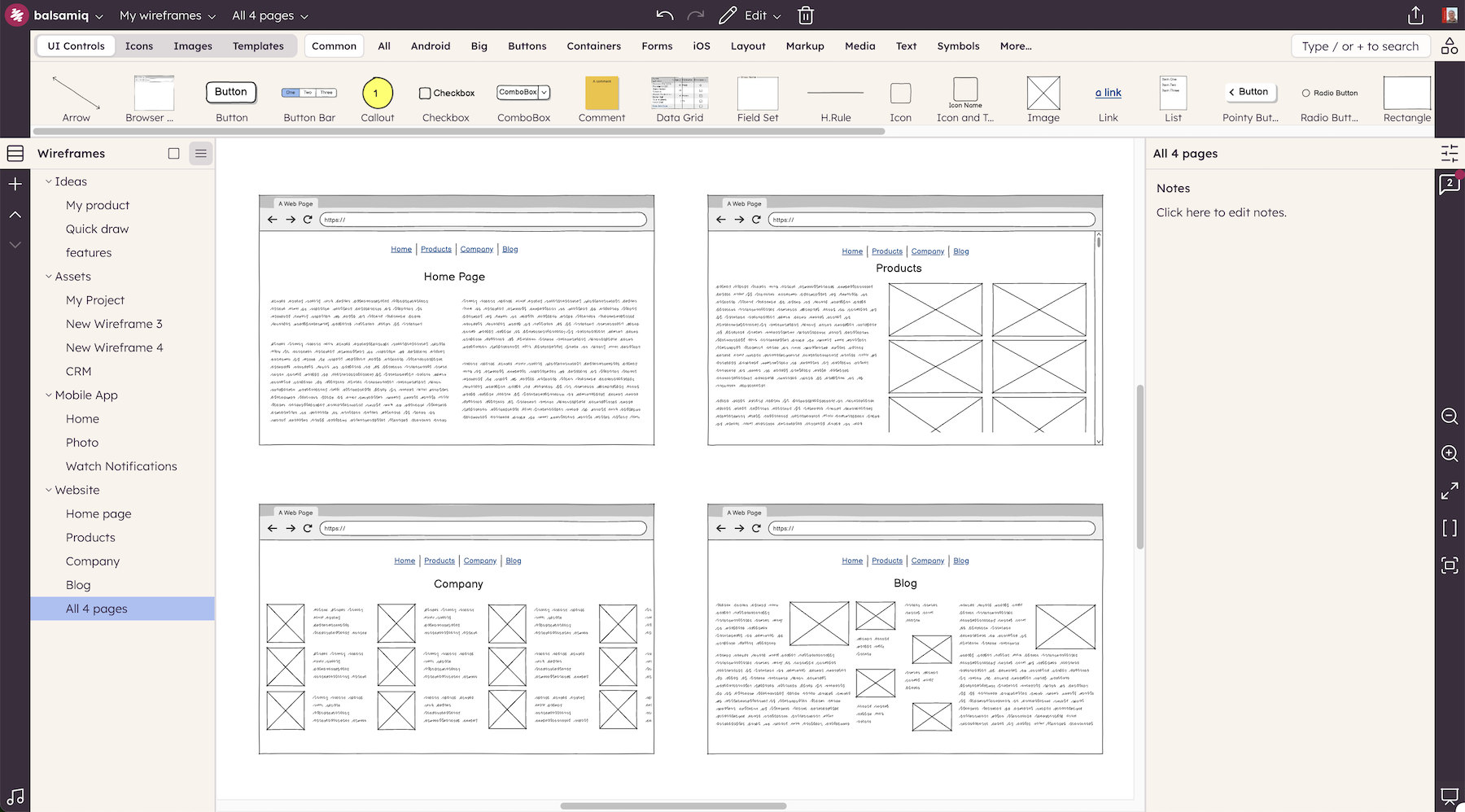
However, when you’re exporting the wireframe to share it with your stakeholders, you might only need a subset of these elements at a time. In this example, let’s start by selecting the two pages (browser windows) that we need.
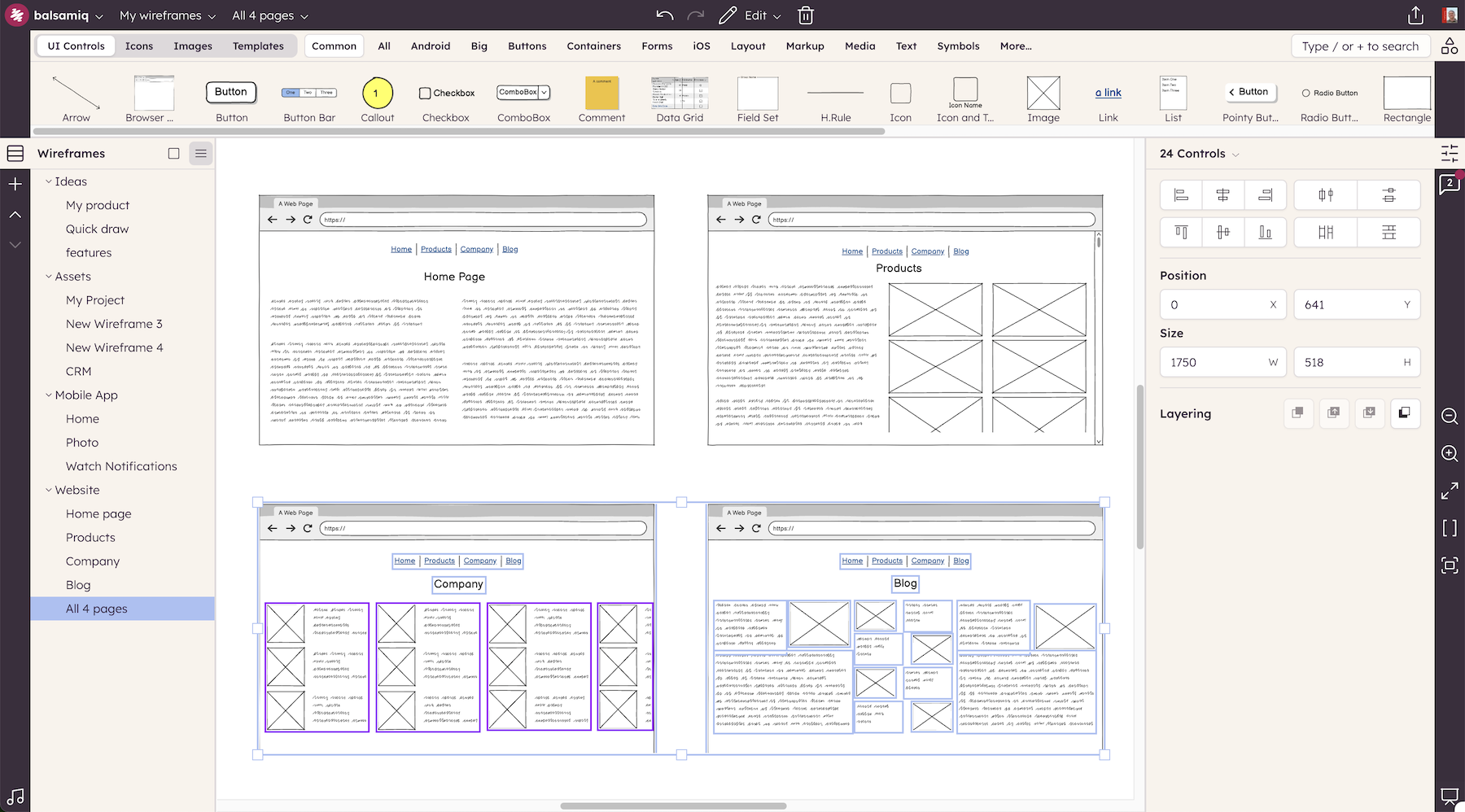
If you look at the selection toolbar, you'll see confirmation that we've selected a subset of the elements on the page - 24 elements.
Now let's export this selection. Select Export from the Project Menu or press CTRL+E.
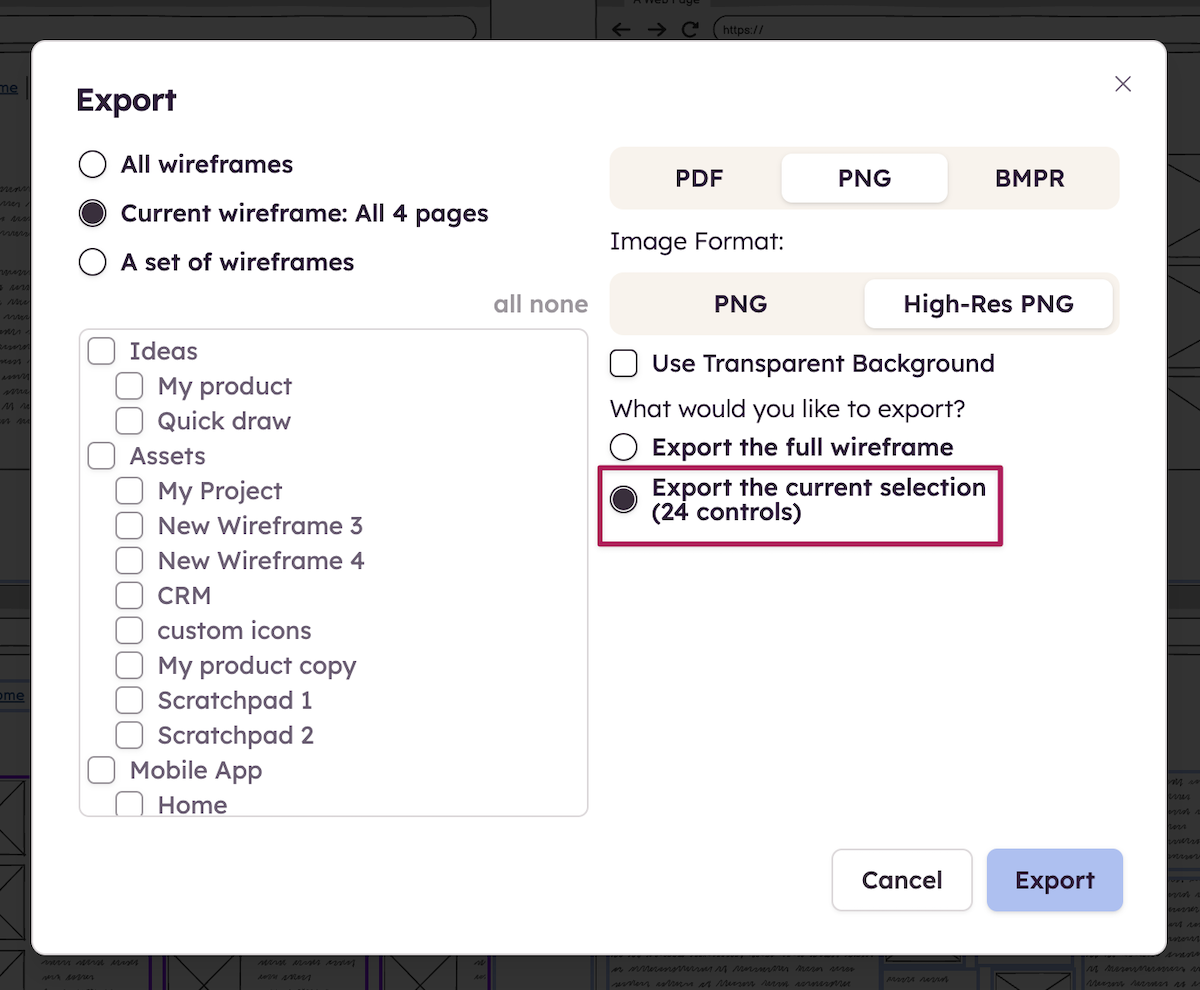
Select the Images option and then check “Export the current selection”. The resulting image of only your selection will be saved to your browser’s download folder: